There is suspicion that the subject participated in criminal activity through a hotspot connection. Is it possible to verify the device’s hotspot connection activity through mobile forensic analysis?
Hotspot connections represent more than simple network activity. They can serve as evidence that two devices were in close physical proximity.
iOS hotspot feature requires manual authentication for the initial connection, but automatically reconnects when the same device comes within range thereafter. This means the presence of automatic connection records indicates that the user previously entered the password manually, and suggests the possibility that both devices were used together in the same location at the time of an incident.
This article aims to explain how to connect to a personal hotspot on iOS devices and provide key information available to identify the connection history. The findings are based on the data extracted from iOS 16.7 device using MD-NEXT v2.2.8 and analyzed via MD-RED v4.0.4.
A hotspot allows a mobile device to share its cellular data connection with another device, providing internet access when Wi-Fi is unavailable.
For a hotspot connection, both the providing device and the receiving device must be within approximately 10 meters of each other.
Table of Contents
- How to Set Up a Personal Hotspot
- Hotspot Connection History on Receiving Device (A)
- Case 1: Device A connects to Device B’s hotspot (1st session)
- Case 2: Device A disconnects from the hotspot (1st session)
- Case 3: Device A reconnects to Device B’s hotspot (2nd session)
- Case 4: Device A disconnects from the hotspot (2nd session)
- Case 5: Device A connects and disconnects from the hotspot (multiple times)
- Summary of Available Information
- Appendix: Information Available on Providing Device (B)
- Summary
1.How to Set Up a Personal Hotspot
When a Wi-Fi network is unavailable, you can share your iPhone’s cellular data connection by enabling a Personal Hotspot. To enable a hotspot, configure devices as follows.
1.1 Hotspot Providing Device
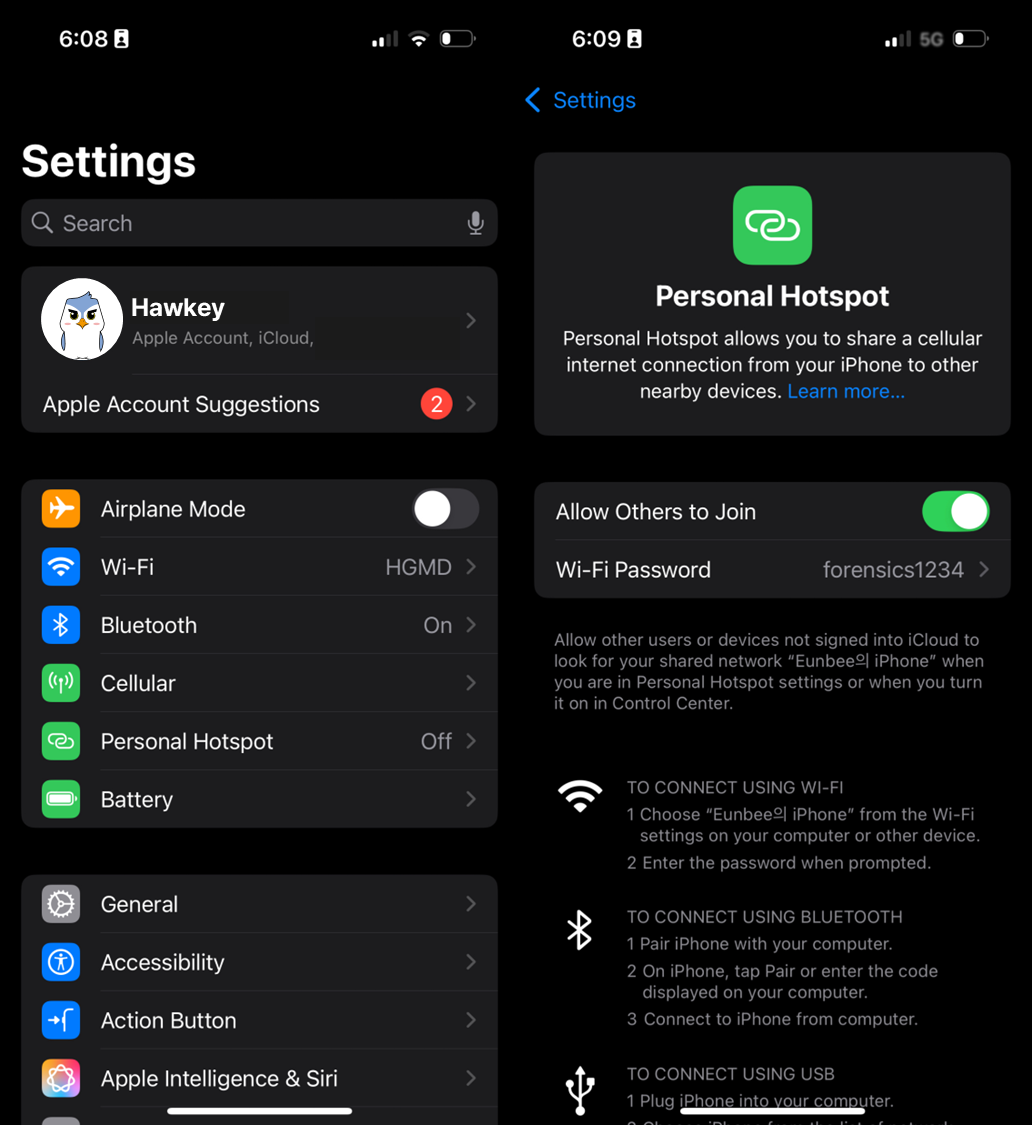
Go to ‘Settings’ > ‘Personal Hotspot’ or ‘Settings’ > ‘Cellular’ > ‘Personal Hotspot’ and enable ‘Allow Others to Join’ option. To use this hotspot, other users must enter the password set in the providing device.
1.2 Hotspot Receiving Device
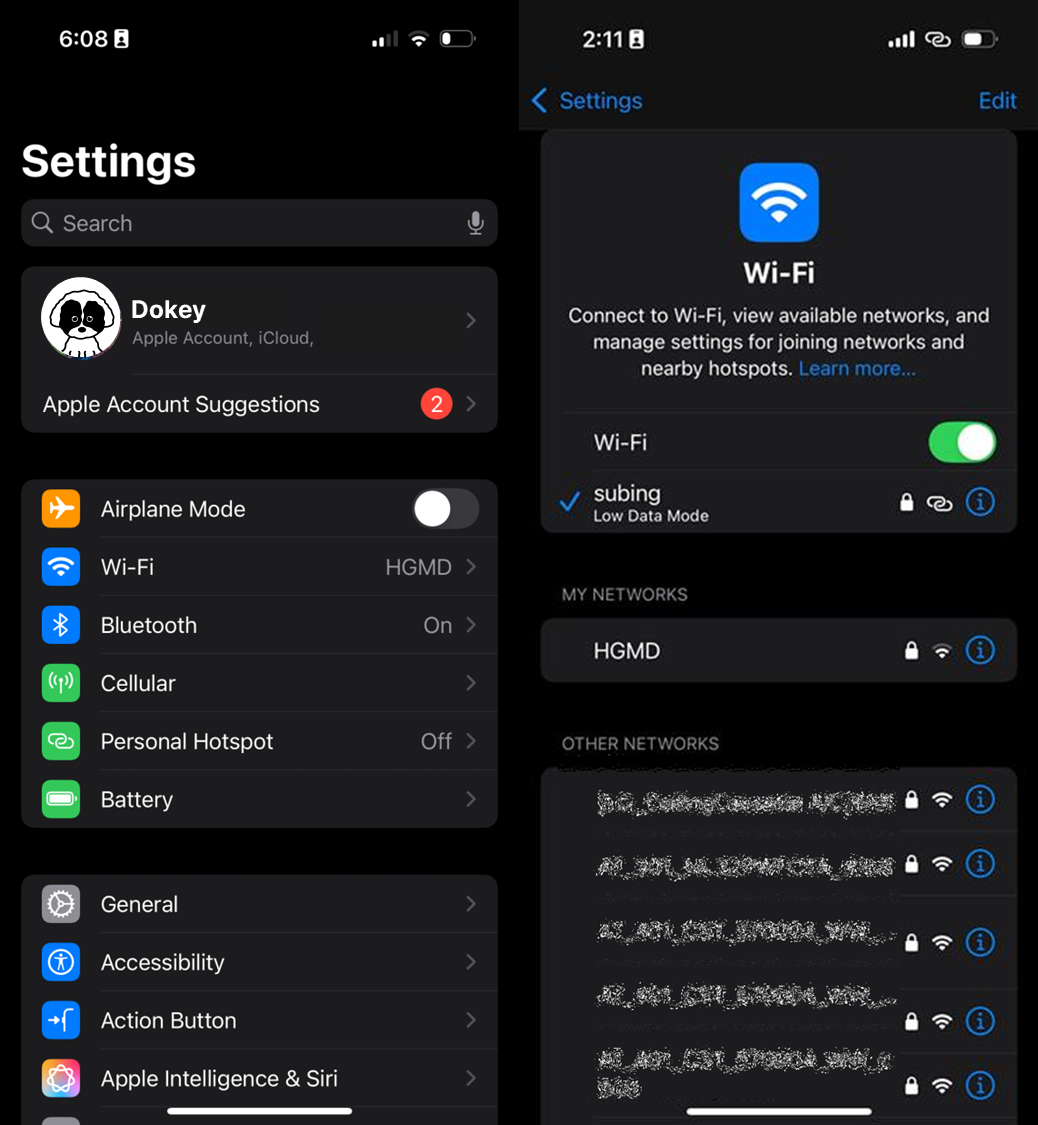
Go to ‘Settings’ > ‘Wi-Fi’ and select a personal hotspot of Device B. A personal hotspot is displayed with the icon next to it. If a personal hotspot is successfully connected, the icon is displayed on the top-right corner of the device screen.
2.Hotspot Connection History on Receiving Device (A)
The hotspot connection history on the receiving device is stored in the following source files:
• /private/var/preferences/com.apple.wifi.known-networks.plist
• /private/var/preferences/SystemConfiguration/com.apple.wifi-private-mac-networks.plist
• /var/mobile/Library/Preferences/com.apple.networkserviceproxy.plist
The following information is available in the fils :
• Start timestamp of initial connection
• Start timestamp of automatic an manual hotspot connection
• Start timestamp of the nth connection
• Start/end timestamp of the last connection
The following sections describe typical scenarios in which this information can be identified and analyzed. Device A refers to the device that received the hotspot connection, and Device B refers to the device that provided it.
The name of the hotspot used by the receiving device is also available for analysis. IF the device name is changed, the name of the providing device may differ from the name it had when the hotspot connection was made.
2.1 Case 1 : Device A Connects to Device B’s hotspot (1st session)
This scenario is when Device A connects to Device B’s personal hotspot. If it is the initial connection, the password set on the providing Device B is required to enable the connection.

The following information is available :
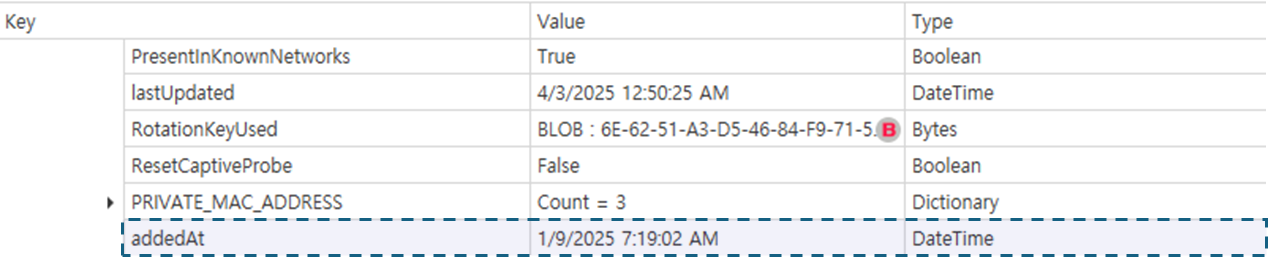
• The AddedAt key in the com.apple.wifi.known-networks.plist file and the AddedAt key in the com.apple.wifi-private-mac-networks.plist file record the timestamp when the hotspot was initially connected.
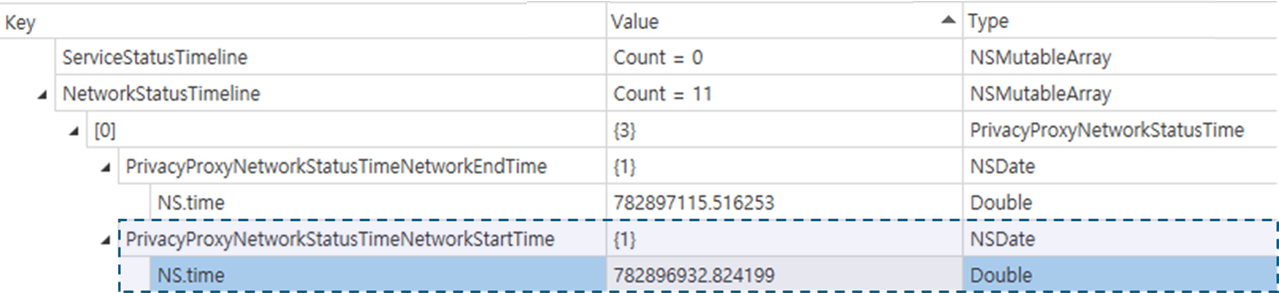
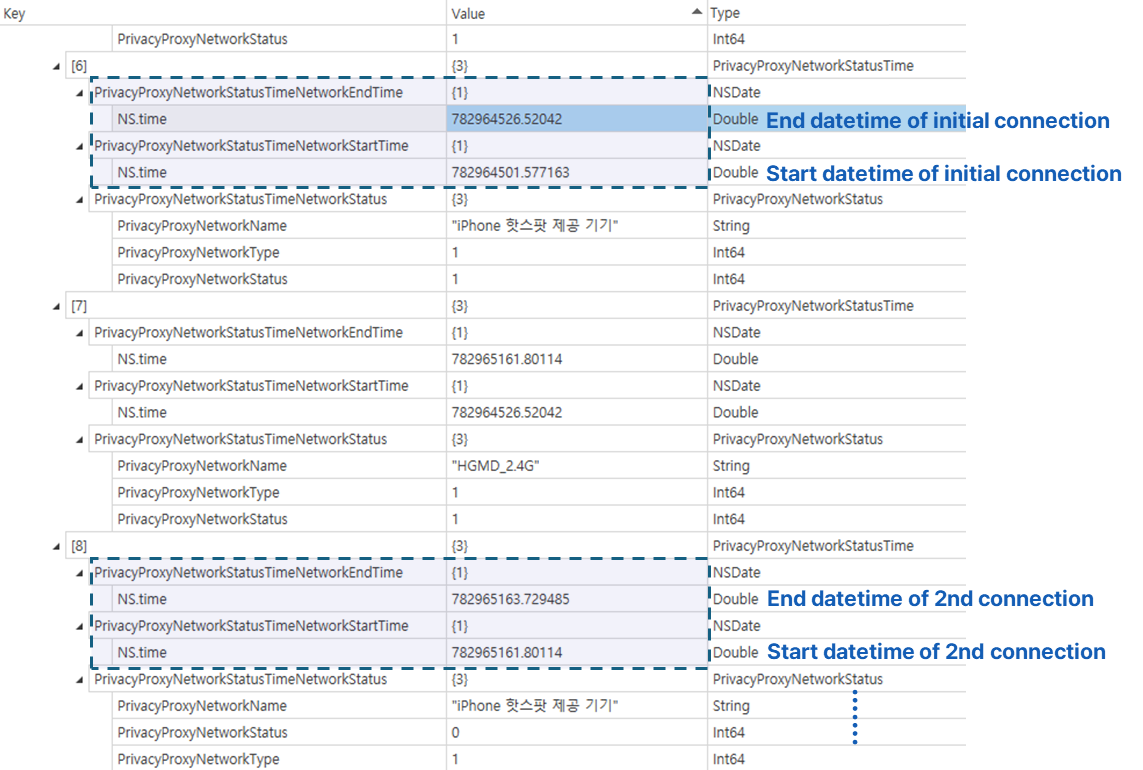
• The NSPServiceStatusMAnagerInfo key in the com.apple.networkserviceproxy.plist file contains blob-processed Plist data with detailed hotspot connection information. In each NS.time key, under PrivacyProxyNetworkStatusTimeNetworkStartTime andPrivacyProxyNetworkStatusTimeNetworkEndTime keys, you cna find the timestamp the hotspot was connected and disconnected. The timestamp is recorded in CFAbsoluteTime format.
CFAbsoluteTime (Core Foundation Absolute Time) is Apple’s timestamp format, which uses January 1, 2001, 00:00:00 UTC as its reference point. By converting a CFAbsoluteTime value to Gregorian date, you can determine the corresponding year, month, day, and hour.
The following table summarizes the information above.
| Source File | Key | Description |
|---|---|---|
/var/mobile/Library/Preferences/com.apple.networkserviceproxy.plist |
|
End timestamp of connection |

2.2 Case 2 : Device A Connects from the hotspot (1st session)
In this case, Device A loses its connection to Device B’s hotpot. Hotspot connections can be lost when :
• The user manually disconnects from the hotspot.
• The device switches to a different Wi-Fi network.
• The device moves too far from the hotspot providing device.
• The hotspot provider changes the hotspot password.
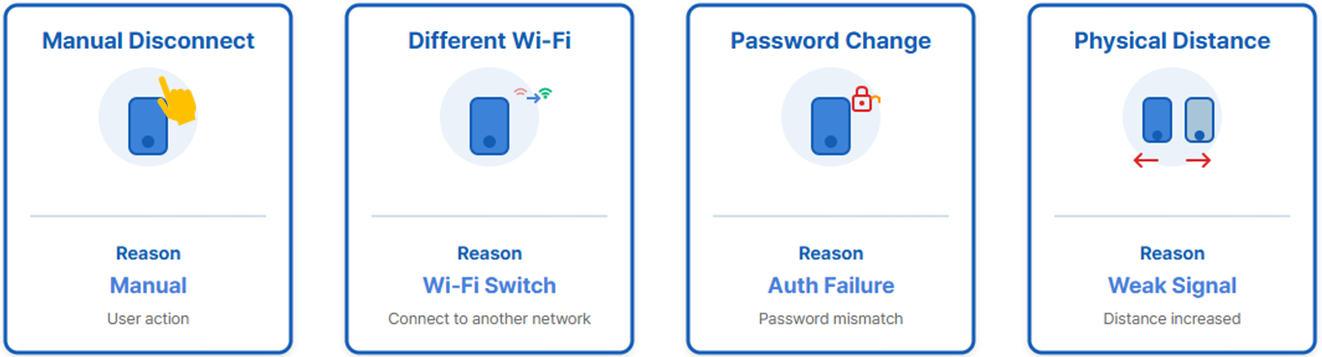
When a connection is terminated, the end timestamp can be found in the com.apple.networkserviceproxy.plist file.
| Source File | Key | Description |
|---|---|---|
com.apple.wifi.known-networks.plist |
JoinedBySystemAt |
Start timestamp of automatic connection |
JoinedByUserAt |
Start timestamp of manual connection | |
com.apple.wifi-private-mac-networks.plist |
lastJoined |
Starttimestamp of the most recent connection |

2.3 Case 3 : Device A Connects to Device B’s hotspot (2nd session)
In this case, Device A temporarily loses connection and then reconnects to Device B’s hotspot. There are two possible reconnection scenarios.
• Automatic connection: The device automatically reconnects when it comes within range of the hotspot. For this condition, the providing device must not have changed the password, and the ‘Allow Others to Join’ option must be enabled.
• Manual connection: The user actively selects and reconnects to the hotspot. Since the password was saved during the first connection, re-authentication is not required.
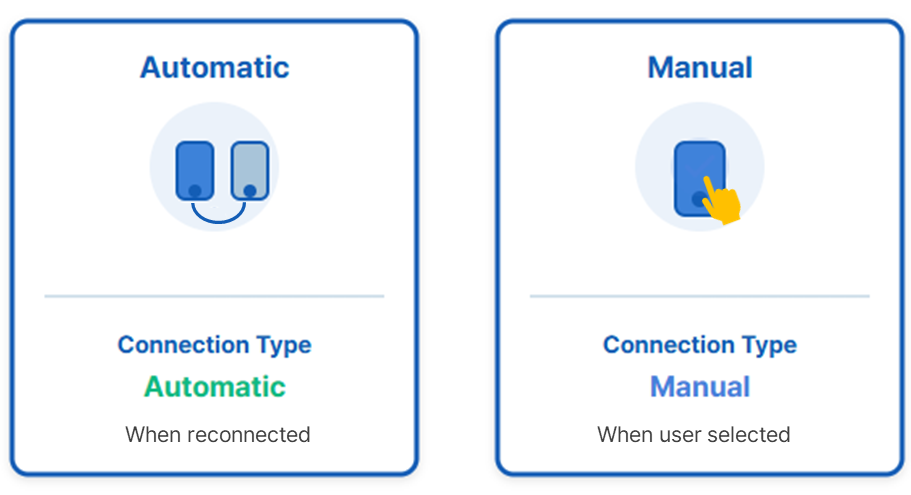
The JoinedBySystemAt key within the com.apple.wifi.known-networks.plist file records the start timestamp of the automatic connection. Upon manual reconnection, the JoinedByUserAt key is updated with the corresponding start timestmap of connection.
The lastJoined key in the com.apple.wifi-private-mac-networks.plist file records the start timestamp of the last connection, updating with each session (2nd, 3rd, nth session).
The table below summarizes the information above.
| Source File | Key | Description |
|---|---|---|
com.apple.wifi.known-networks.plist |
JoinedBySystemAt |
Start timestamp of automatic connection |
com.apple.wifi.known-networks.plist |
JoinedByUserAt |
Start timestamp of manual connection |
com.apple.wifi-private-mac-networks.plist |
lastJoined |
Starttimestamp of the most recent connection |


2.4 Case 4 : Device A disconnects from the hotspot (2nd session)
In this case, the device disconnects from the hotspot after having successfully reconnected. To determine when the hotspot connection was terminated, refer to UpdatedAt key in com.apple.wifi.known-networks.plist file and lastUpdated key in com.apple.sifi-private-mac-networks.plist file.

These timestmaps may update after actual disconnection occurs. They do not represent precise disconnection timestamps and should be used only as reference data for hotspot network logs.
2.5 Case 5 : Device A disconnects from the hotspot (multiple times)
In this case, the device repeatedly connects to and disconnects from the hotspot. In each session, the same information described in Case 3: Device A reconnects to Device B’s hotspot (2nd session) can be found.
When hotspot connections and disconnections occur two or more times, the start and end timestamps for all sessions except the last one are recorded in the NS.timekey under the
PrivacyProxyNetworkStatusTimeNetworkStartTime and PrivacyProxyNetworkStatusTimeNetworkEndTime keys in the com.apple.networkserviceproxy.plist file.
For example, if four sessions occurred, the start and end timestmaps for sessions 1 through 3 can be identified in the source file. While the las (4th) session’s connection start and end timestmaps cannot be verified, you can refer to the recording of previous connection and disconnection timestamps to trace hotspot connection history.

A session refers to a single connection unit from the moment a hotspot connection is initiated until it is terminated.
The table below summarized the information above.
| Source File | Key | Description | |
|---|---|---|---|
com.apple.networkserviceproxy.plist |
|
NS.time |
*When a connection is established and terminated more than twice, start and end timestamp of the last connection are not recorded.
|
3. Summary of Available Information
| Source File | Key | Description |
|---|---|---|
/private/var/preferences/com.apple.wifi.known-networks.plist |
|
|
/private/var/preferences/SystemConfiguration/com.apple.wifi-private-mac-networks.plist |
|
|
/var/mobile/Library/Preferences/com.apple.networkserviceproxy.plist |
|
*When a connection is established and terminated more than twice, start and end timestamp of the last connection are not recorded.
|
4.Appendix: Information Available on Providing Device (B)
The device that provided the hotspot also stores records of hotspot connection activity.If deleted records are present in the ZTIMESTMAP key of the ZPROCESS table in the /private/var/wireless/Library/Databases/DataUsage.sqlite file, it suggest that the hotspot provider enabled the ‘Allow Others to Join’ option.
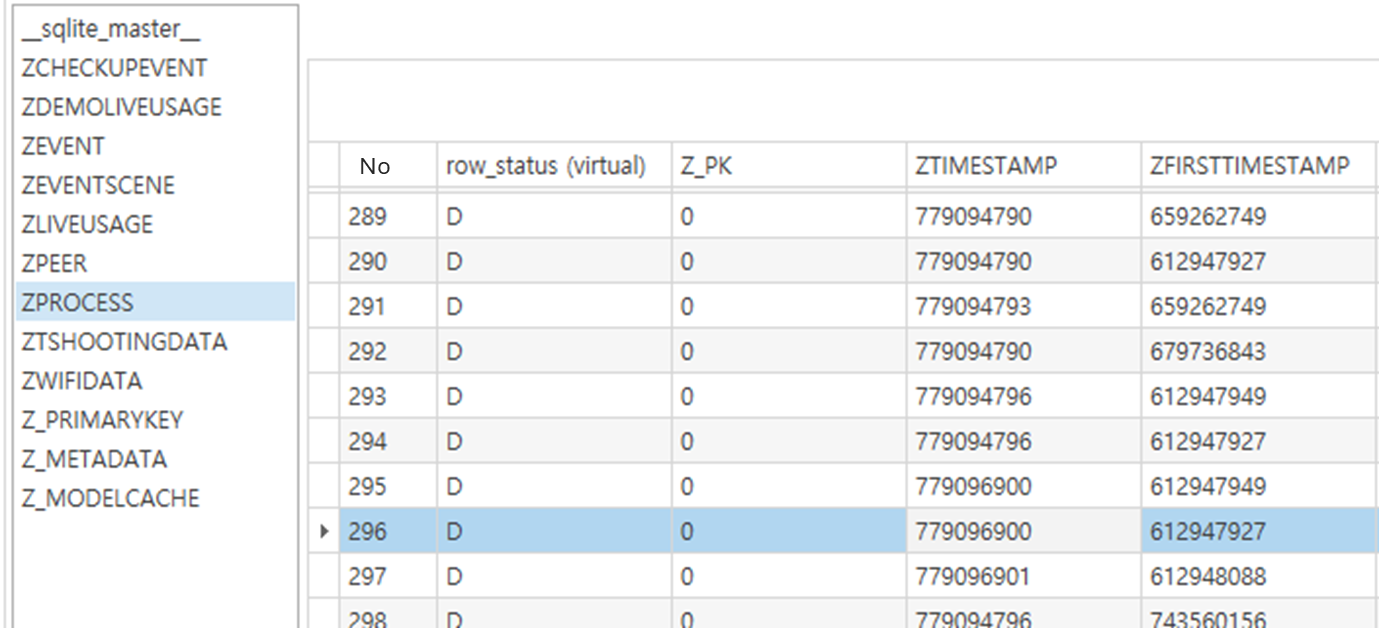
Records are not always created every time the hotspot is enabled.
However, when records are present, the timestamp indicates when the hotspot was enabled and can be used as reference data.
5.Summary
- • Hotspot connection records suggest the physical proximity of the providing and receiving devices.
-
• Connecting to a hotspot requires entering the hotspot password on the initial connection. If a device automatically connects to a specific hotspot, it suggests a prior connection between the two devices.
- • On the receiving device, hotspot connection records are found in the following source files
-
◦ com.apple.wifi.known-networks.plist
-
◦ com.apple.wifi-private-mac-networks.plist
-
◦ com.apple.networkserviceproxy.plist
-
- • On the providing device, if deleted records of the
ZTIMESTMAPkey in theZPROCESStable of the DataUsage.sqlite file exist, it indicates that a hotspot connection occurred.